TinyCLR Config
TinyCLR Config is a stand-alone tool for managing SITCore devices — firmware installation, encrypted application deployment, device configuration, and inspection. Get it from the Downloads page.
It runs in two modes:
- GUI — the windowed app. Best for interactive, click-through use, and the only mode that shows an application's debug output.
- CLI — a command-line mode for scripting, automation, and CI. It also covers a few operations the GUI doesn't, such as building a
.tcadeployment file straight from a project, and reading or setting the device's real-time clock (RTC).
GUI mode
Connecting to a device
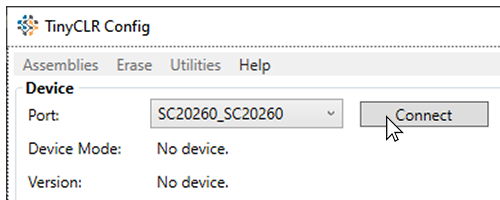
When TinyCLR Config opens, the Device section is near the top of the window. Plug your device into USB, click the Select a device dropdown, pick your device from the list, then click Connect.
Updating firmware
- Put the device in bootloader mode (hold LDR low while resetting — see Special Pins).
- Connect TinyCLR Config to the device.
- Click the
...button next to Update Firmware, then select a.ghior.glbfirmware file. - Click Update Firmware.
The Erase → Erase All option erases both the firmware and the application. This isn't required for a firmware update, but it can help when a device is misbehaving.
Using Visual Studio? The Visual Studio Extension can detect out-of-date firmware and update it directly from the IDE, so you don't need to run TinyCLR Config separately.
Deploying encrypted applications
TinyCLR Config can package your compiled application as an encrypted deployment file (.tca) that requires a key to install. This is the path for production deployments — the application code is not readable on the device without the key.
Creating a deployment file
- Install the application on the device first, then connect TinyCLR Config to that device.
- Provide a key — either type one into the key box (hexadecimal pairs separated by hyphens) or click Generate Key to create a random one.
- Optionally, enter a version number in Version of created app.
- Click
...next to Create App and choose where to save the file. - Click Create App. TinyCLR Config writes the encrypted deployment file (
.tca) and a text file containing the key to the directory you chose.
Installing a deployment file
- Connect TinyCLR Config to the target device.
- Click
...next to Update App and select the.tcafile. - Enter the matching key in the key box.
- Click Update App. If the key matches the file, the application is deployed to the device.
Device configuration
The device configuration window (Utilities → Update Configuration) has options with important security implications. There are two regions: Firmware Config and Application Config.
Firmware Config
Stored in flash. Changes only take effect after re-flashing the firmware or running Erase All.
- Extend heap — uses external RAM for the system heap. Reduces security. See External Memory for the implications.
- Persist slow clock — runs the system clock at half speed, saving about 40% power. See Power Management.
- Disable APP pin, Debug Mode, Device Name — change or disable APP and MOD pin behavior. See Device Info.
Application Config
Stored in flash. Persisted across firmware updates — only Erase All resets it.
For added security, the debug interface can be disabled here. Secure production designs typically disable the debug interface and rely on In-Field Update for firmware updates after deployment.
You can also disable the debug interface from within your application code — see IP Protection for the full security pattern.
Utilities
The Utilities and Assemblies menus provide tools for inspecting and managing a connected device.
- Assemblies → Assemblies Listing — lists all assemblies installed on the device along with their version numbers.
- Utilities → Ping — verifies the device is responding.
- Utilities → Reboot — restarts the device.
- Utilities → Deployment Map — see below.
Deployment map

The Deployment Map shows how the device's flash is used by your application. Beyond resource accounting, it confirms that your assemblies are stored in secure internal flash rather than external flash — important for protecting application code on shipped devices. See IP Protection for the security implications.
CLI mode
The CLI is the default when the tool is run from a terminal: GHIElectronics.TinyCLR.Config.exe with no arguments starts CLI mode, while -g launches the GUI. It's built for scripted and headless workflows — build servers, CI, and production lines — and it exposes a few operations the GUI doesn't.
Commands
Every command follows the same pattern:
GHIElectronics.TinyCLR.Config.exe -cmd:<command> [options]
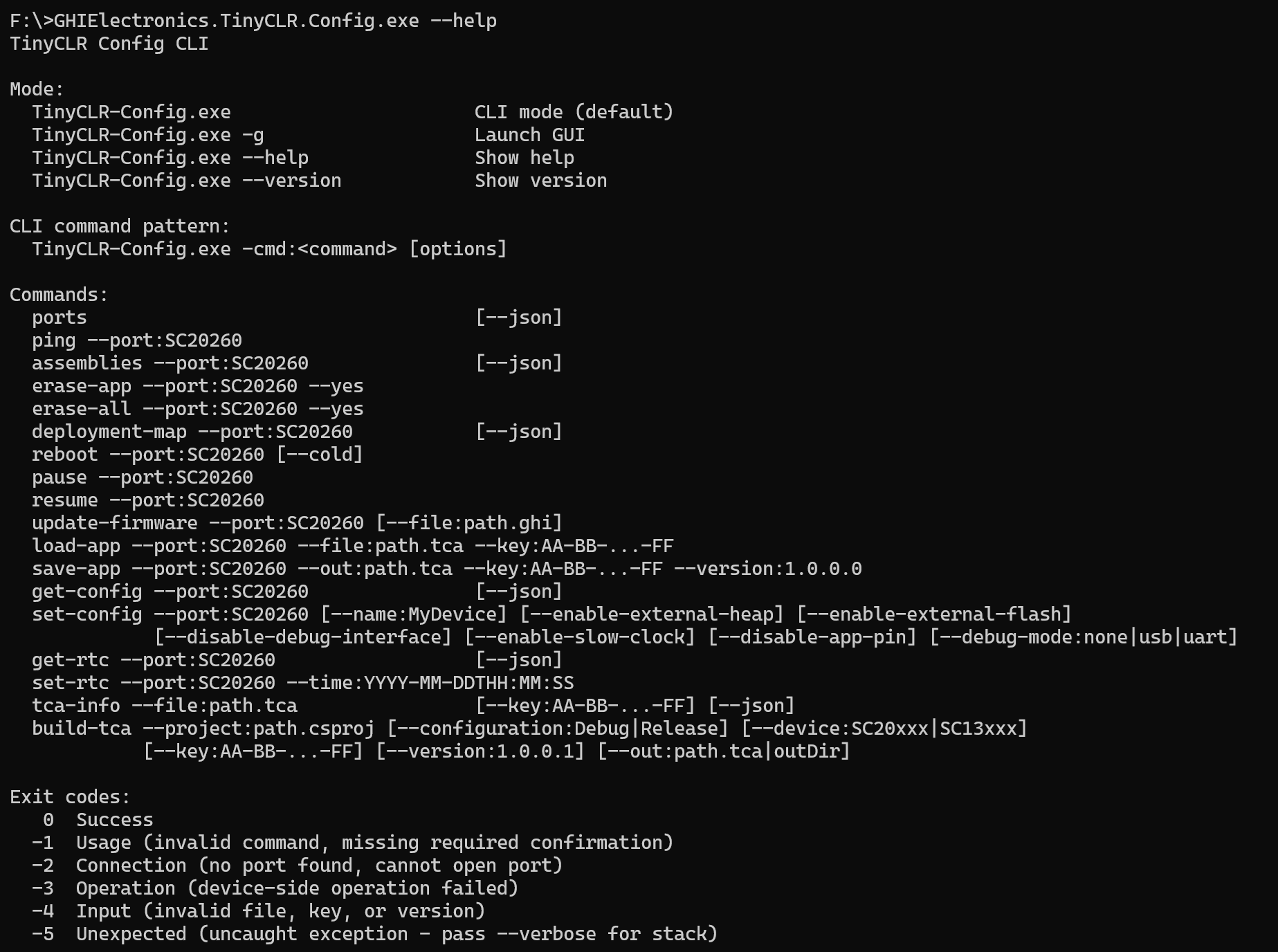
Run GHIElectronics.TinyCLR.Config.exe --help for the full list, or --version for the version. Common commands:
| Command | What it does |
|---|---|
-cmd:ports | List connected devices and ports (add --json for machine-readable output) |
-cmd:ping --port:SC20260 | Verify a device is responding |
-cmd:assemblies --port:SC20260 | List the assemblies installed on the device |
-cmd:deployment-map --port:SC20260 | Show how flash is used (the deployment map) |
-cmd:erase-app --port:SC20260 --yes | Erase the application (erase-all erases firmware + app) |
-cmd:update-firmware --port:SC20260 --file:firmware.ghi | Flash firmware |
-cmd:load-app --port:SC20260 --file:app.tca --key:AA-BB-…-FF | Install an encrypted .tca |
-cmd:save-app --port:SC20260 --out:app.tca --key:AA-BB-…-FF --version:1.0.0.0 | Read the installed app back out as an encrypted .tca |
-cmd:get-config --port:SC20260 / -cmd:set-config … | Read or change device configuration |
-cmd:reboot --port:SC20260 [--cold] | Restart the device |
What the CLI adds over the GUI
-
Build a
.tcastraight from a project.build-tcacompiles a project directly into an encrypted deployment file — no device round-trip. The GUI can only create a.tcafrom an app already installed on a device.GHIElectronics.TinyCLR.Config.exe -cmd:build-tca --project:MyApp.csproj --configuration:Release --device:SC20xxx --key:AA-BB-…-FF --version:1.0.0.1 --out:MyApp.tca -
Read and set the real-time clock.
get-rtc/set-rtcwork over the command line; the GUI has no RTC controls.GHIElectronics.TinyCLR.Config.exe -cmd:set-rtc --port:SC20260 --time:2026-06-11T09:30:00GHIElectronics.TinyCLR.Config.exe -cmd:get-rtc --port:SC20260 --json -
Scripting-friendly results. Every command returns an exit code —
0for success, and negative values for errors (-1usage,-2connection,-3operation,-4input,-5unexpected). Combined with--jsonoutput, this makes the CLI easy to drive from a build pipeline.
Use the GUI to watch an application's debug output — that view is GUI-only. Use the CLI for automation and for the operations the GUI doesn't offer (build-tca, get-rtc / set-rtc).