VNC
VNC (Virtual Network Computing) lets you view and interact with the SITCore's display remotely from a PC, phone, or tablet — no physical screen needed on the device. The device runs a VncServer that exposes its graphics framebuffer over TCP, and the client connects with a standard VNC viewer.
Useful for headless deployments, remote diagnostics, kiosks behind glass, and devices that don't have a local display at all (you still draw with the graphics engine — the pixels just go over the network instead of to a panel).
NuGet package: GHIElectronics.TinyCLR.Vnc.
Supported clients
The implementation has been tested with the following VNC viewers:
- TightVNC Viewer 2.8.27
- TightVNC Java Viewer 2.8.3
- UltraVNC 1.2.4.0
- bVNC: Secure VNC Viewer (mobile)
RealVNC is not supported. Use one of the above instead.
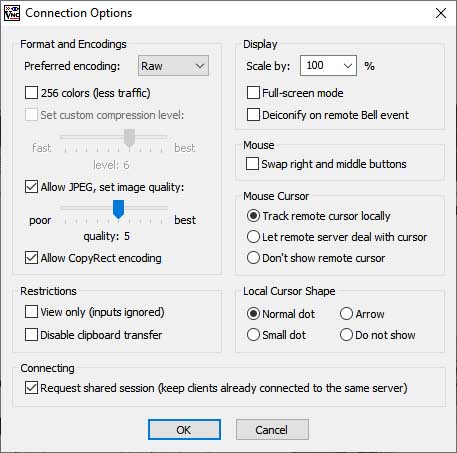
In your VNC viewer, set the preferred encoding to Raw.
Example
The device needs an active network connection (WiFi, Ethernet, etc.) before the VNC server starts. The example below starts a 320×240 VNC server on port 5900, animates a moving ellipse with a frame counter, and prints any mouse interaction received from the client.
using GHIElectronics.TinyCLR.Vnc;
using System.Diagnostics;
using System.Drawing;
using System.Threading;

// Network connection (WiFi, Ethernet, etc.) must be up before this runs.

var vncServer = new VncServer("VNC Viewer", port: 5900, width: 320, height: 240);
vncServer.PointerChangedEvent += (x, y, pressed) =>
    Debug.WriteLine("Pointer: x=" + x + ", y=" + y + ", pressed=" + pressed);

vncServer.Start();
Debug.WriteLine("VNC started");

// Draw into a 320×240 bitmap; flush events push to the VNC client.
var vncDisplay = Graphics.FromImage(new Bitmap(320, 240));
var font = Resources.GetFont(Resources.FontResources.Arial);

Graphics.OnFlushEvent += (sender, data, x, y, width, height, originalWidth) =>
    vncServer.Send(data, x, y, width, height);

var cnt = 0;
while (true) {
    vncDisplay.Clear();
    vncDisplay.DrawString(cnt + " SITCore VNC!", font, new SolidBrush(Color.Yellow), 15, 20);
    vncDisplay.DrawEllipse(new Pen(Color.Red), cnt, 160, 40, 40);
    vncDisplay.Flush();

    cnt += 5;
    if (cnt > 320) cnt = 0;

    Thread.Sleep(10);
}
The pattern is the same as virtual displays — draw into a RAM bitmap, register an OnFlushEvent handler, push the bytes to the destination (here: the VNC client).
Connecting from a client
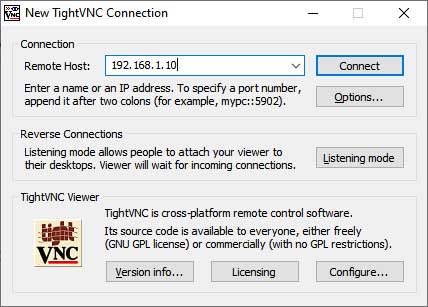
The only thing you need to enter in the VNC viewer is the device's IP address (and port 5900 if you changed it):
Set the preferred encoding to Raw:
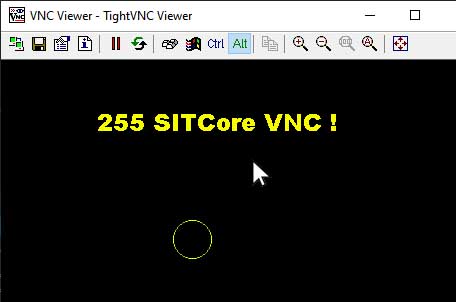
Once connected, the TinyCLR graphics surface shows up in the VNC window:
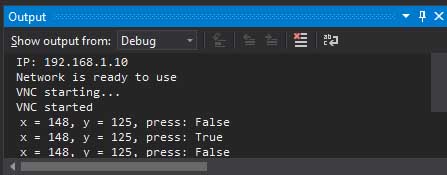
Mouse coordinates and click state from the VNC client are routed back to the device through the PointerChangedEvent: