Runtime Loadable Procedures (RLP)
Runtime Loadable Procedures (RLP) call native ARM C/C++ code from a C# app — loaded onto the device at runtime, with no firmware rebuild. The C is compiled into a small ELF file, placed on the device (SD card, USB drive, or embedded resource), then functions are looked up by name and called from managed code.
Think of it as the embedded equivalent of calling a native DLL from desktop .NET — application logic stays in convenient, safe C#, and the parts that need raw speed drop into compiled native code.
Use RLP for raw speed or low-level work the managed APIs don't cover:
- Fast math & scanning — tight compute loops (DSP, CRC, image/pixel processing, fast sensor sampling) run in native ARM, far faster than the interpreted C# loop.
- Direct GPIO access — read, write, and toggle pins (with microsecond delays) from native code.
- Lookup tables & persistent state —
consttables in.rodata, counters and state in.bss. - Periodic background tasks — schedule a native callback that runs on its own while C# does other work.
- Native → managed events — post events from native code up to a C# event handler.
- GPIO interrupts — handle pin-change interrupts entirely in native code (for example, mirror a button to an LED).
NuGet package: GHIElectronics.TinyCLR.RuntimeLoadableProcedures.
RLP is designed for computation and GPIO — fast native loops plus the GPIO, timing, task, and event helpers shown below. To read or write a specific peripheral register directly from C# instead, see Marshal.
RLP project template
The TinyCLR SDK ships a TinyCLR RLP Application project template. In Visual Studio, choose File → New → Project, search for "RLP", and pick it:
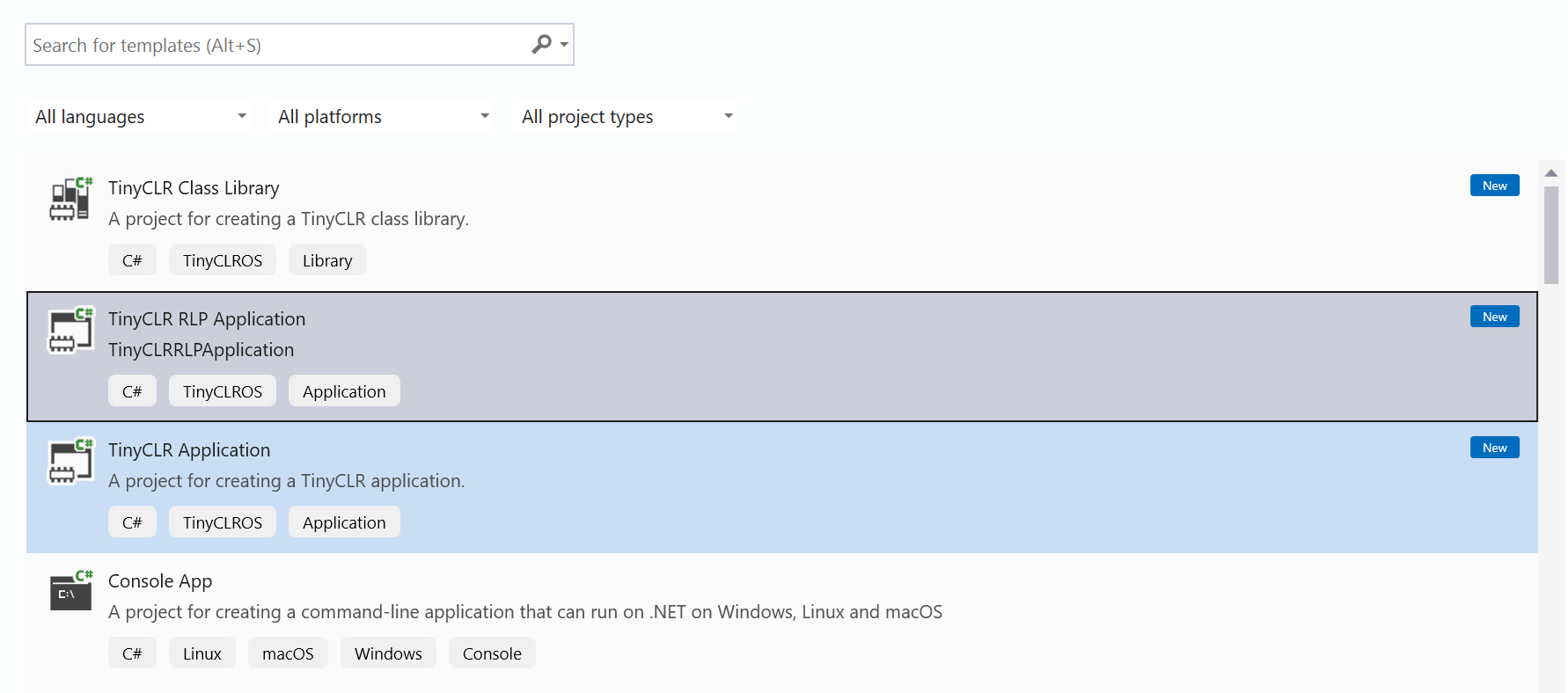
It's a complete, working solution — seven ready-to-run examples that show the whole feature without writing any code first:
| Example | What it shows |
|---|---|
| Speed | The same 10,000-iteration loop in C# vs RLP, timed side by side |
| Sum | Pure math — the simplest load → look-up → call |
| Toggle | Drive a GPIO pin with microsecond delays |
| SquareLookup | A const lookup table (.rodata) plus a static counter (.bss) |
| Task | A periodic native callback running in the background |
| Event | Native code posting events back to a C# handler |
| Button | A GPIO interrupt mirrored to an LED, entirely in native code |
The template targets the SC20260 Dev Board by default (LED PH11, button input PD7, LED output PB0). For another SC20xxx board, edit the pin constants at the top of Program.cs.
Workflow
- Write the C in
rlp_src/template_src.c. - Double-click
rlp_src/build.batto compile it intorlp_src/app.elf. (Requires the Arm GNU toolchainarm-none-eabi-gcc8.3.1 or newer atC:\gcc; editGCC_ROOTin the script if the toolchain is installed elsewhere.) - Get
app.elfonto the device — copy it to an SD card, drop it on the device's USB drive, or embed it as a resource (see Loading the ELF). - Deploy the C# app with F5.
Changing only the C/C++ code? No need to rebuild the C# project. Just re-run build.bat to regenerate app.elf, then reload it onto the device — copy the new file to the SD card, drop it on the USB drive, or rebuild if it's an embedded resource. The C# app reads the fresh ELF at startup.
How it works
The ELF is just a byte[]. Hand the bytes to ElfImage, which loads the code and data into device memory and exposes exported functions by name:
using GHIElectronics.TinyCLR.RuntimeLoadableProcedures;

byte[] elfBytes = /* from SD card, USB, or resource — see below */;

var image = new RuntimeLoadableProcedures.ElfImage(elfBytes);
image.InitializeBssRegion();             // zero the static (.bss) data

var sum = image.FindFunction("Sum");     // look up by exported name
int result = sum.Invoke(3, 4);           // call it → 7
sum.Dispose();

image.Dispose();                         // unload when done
On the C side, every exported function has the same shape: it takes void** args (one slot per argument passed from C#) and returns an int. Mark each export with RLP_EXPORT so the linker keeps it:
#include "RLP.h"

RLP_EXPORT int Sum(void** args) {
    int a = *(int*)args[0];
    int b = *(int*)args[1];
    return a + b;
}
Invoke accepts integers (any width, signed or unsigned), float, double, bool, and arrays of those. The first call fixes the argument count — later calls to the same function must pass the same number of arguments.
Examples
The C snippets below are from the template's rlp_src/template_src.c; the C# is from Program.cs.
Speed
The headline reason to use RLP. The same loop, run in interpreted C# and in native RLP, timed:
// template_src.c
RLP_EXPORT int Speed(void** args) {
    int count = *(int*)args[0];
    int total = 0;
    for (int i = 0; i < count; i++)
        total += i * i + i;
    return total;
}
// Program.cs
const int N = 10000;

// Same loop in C#…
var t1 = DateTime.Now;
int csTotal = 0;
for (int i = 0; i < N; i++) csTotal += i * i + i;
var csMs = (DateTime.Now - t1).Ticks / 10000L;

// …and in RLP.
var speed = image.FindFunction("Speed");
var t2 = DateTime.Now;
int rlpTotal = speed.Invoke(N);
var rlpMs = (DateTime.Now - t2).Ticks / 10000L;
speed.Dispose();

Debug.WriteLine("C#: " + csMs + " ms, RLP: " + rlpMs + " ms");   // RLP is many times faster
GPIO
Open a pin, toggle it with a microsecond delay between transitions, then release it — all in native code:
// template_src.c — args: pin, count, delay (microseconds)
RLP_EXPORT int Toggle(void** args) {
    uint32_t pin     = *(uint32_t*)args[0];
    uint32_t count   = *(uint32_t*)args[1];
    uint32_t delayUs = *(uint32_t*)args[2];

    if (RLP_Gpio_EnableOutput(pin, 0) != 0) return -1;   // -1: pin already in use

    for (uint32_t i = 0; i < count; i++) {
        RLP_Gpio_Write(pin, 1);
        RLP_Time_DelayMicroseconds(delayUs);
        RLP_Gpio_Write(pin, 0);
        RLP_Time_DelayMicroseconds(delayUs);
    }

    RLP_Gpio_Release(pin);
    return (int)count;
}
// Program.cs — pin number uses the TinyCLR encoding (port * 16 + index)
var toggle = image.FindFunction("Toggle");
toggle.Invoke((uint)SC20260.GpioPin.PH11, 10u, 200000u);   // blink 10x, 200 ms each
toggle.Dispose();
Make sure C# isn't already holding the pin — Dispose() the managed GpioPin first so the native code can open it.
Tables & state
const data lands in .rodata; static variables land in .bss (zeroed by InitializeBssRegion()). Both survive across calls:
// template_src.c
static const uint32_t s_squares[16] = {
    0, 1, 4, 9, 16, 25, 36, 49, 64, 81, 100, 121, 144, 169, 196, 225
};
static int s_callCount;                 // lives in .bss

RLP_EXPORT int SquareLookup(void** args) {
    int idx = *(int*)args[0];
    s_callCount++;
    if (idx < 0 || idx >= 16) return -1;
    return (int)s_squares[idx];
}

RLP_EXPORT int GetCallCount(void** args) {
    (void)args;
    return s_callCount;                 // persists between Invoke calls
}
var lookup = image.FindFunction("SquareLookup");
var count  = image.FindFunction("GetCallCount");

Debug.WriteLine("5² = " + lookup.Invoke(10));     // → 25
Debug.WriteLine("calls so far = " + count.Invoke());

lookup.Dispose();
count.Dispose();
Background task
Schedule a native callback that runs on its own. C# gets back an opaque handle and is free to do other work while the task fires:
// template_src.c
typedef struct {
    RLP_Task task;                      // must be first
    uint32_t pin, periodUs;
    volatile uint32_t tickCount;
    volatile uint8_t  ledState;
} TaskState;

void OnTaskTick(void* arg) {
    TaskState* s = (TaskState*)arg;
    s->tickCount++;
    s->ledState ^= 1;
    RLP_Gpio_Write(s->pin, s->ledState);
    RLP_Task_ScheduleAfter(&s->task, s->periodUs);   // re-arm
}

RLP_EXPORT int TaskStart(void** args) {
    uint32_t pin = *(uint32_t*)args[0], periodUs = *(uint32_t*)args[1];
    TaskState* s = (TaskState*)RLP_Memory_Allocate(sizeof(TaskState));
    if (s == 0 || RLP_Gpio_EnableOutput(pin, 0) != 0) return 0;
    s->pin = pin; s->periodUs = periodUs; s->tickCount = 0; s->ledState = 0;
    RLP_Task_Initialize(&s->task, OnTaskTick, s);
    RLP_Task_Schedule(&s->task);
    return (int)s;                      // handle
}

RLP_EXPORT int TaskStop(void** args) {
    TaskState* s = (TaskState*)*(uint32_t*)args[0];
    if (s == 0) return -1;
    RLP_Task_Abort(&s->task);
    RLP_Gpio_Release(s->pin);
    return (int)s->tickCount;
}
var start = image.FindFunction("TaskStart");
var stop  = image.FindFunction("TaskStop");

int handle = start.Invoke((uint)SC20260.GpioPin.PH11, 100000u);   // blink every 100 ms
Thread.Sleep(5000);                                               // do other work…
int ticks = stop.Invoke(handle);                                  // ~50 ticks
Debug.WriteLine("task fired " + ticks + " times");

start.Dispose();
stop.Dispose();
Events to C#
Native code can push events up to a managed handler with RLP_PostManagedEvent. The handler runs on a managed thread (never in interrupt context):
// template_src.c
RLP_EXPORT int EventFire(void** args) {
    uint32_t data = *(uint32_t*)args[0];
    RLP_PostManagedEvent(data);         // delivered to the C# NativeEvent handler
    return 0;
}
void OnRlpEvent(uint data) {
    Debug.WriteLine("RLP event: 0x" + data.ToString("X8"));
}

RuntimeLoadableProcedures.NativeEvent += OnRlpEvent;

var fire = image.FindFunction("EventFire");
fire.Invoke(0xCAFEBABEu);               // native posts → OnRlpEvent runs
fire.Dispose();
The template also shows the asynchronous variant (EventStartPeriodic / EventStopPeriodic), where a background task posts a stream of events that the C# handler receives one by one.
GPIO interrupts
Wire a button to an LED entirely in native code. The ISR runs in completion-engine thread context (≈10 ms latency — fine for a human button), so it can safely call other RLP_* helpers:
// template_src.c
typedef struct { uint32_t btnPin, ledPin; } BtnState;

void OnButtonChange(uint32_t pin, uint32_t state, void* param) {
    BtnState* s = (BtnState*)param;
    RLP_Gpio_Write(s->ledPin, state ? 0 : 1);   // pull-up button: pressed (0) → LED on
}

RLP_EXPORT int BtnStart(void** args) {
    uint32_t btnPin = *(uint32_t*)args[0], ledPin = *(uint32_t*)args[1];
    BtnState* s = (BtnState*)RLP_Memory_Allocate(sizeof(BtnState));
    if (s == 0) return 0;
    s->btnPin = btnPin; s->ledPin = ledPin;
    if (RLP_Gpio_EnableOutput(ledPin, 0) != 0) return 0;
    RLP_Gpio_EnableInterruptInput(btnPin,
        RLP_GPIO_PACK_EDGE_RESISTOR(RLP_GPIO_EDGE_BOTH, RLP_GPIO_RESISTOR_PULLUP),
        OnButtonChange, (void*)s);
    return (int)s;
}
var start = image.FindFunction("BtnStart");
var stop  = image.FindFunction("BtnStop");

int handle = start.Invoke((uint)SC20260.GpioPin.PD7, (uint)SC20260.GpioPin.PB0);
// …button now drives the LED with no managed code involved…
stop.Invoke(handle);

start.Dispose();
stop.Dispose();
Loading the ELF
app.elf is just bytes — the device doesn't care where they come from. The template's LoadAppElf() helper shows three options; pick the one that fits the hardware:
- (A) SD card (default) — copy
app.elfto the card root, insert it, and read it withFile.ReadAllBytes. - (B) USB mass storage — plug the device into a PC; it appears as a removable drive. Drop
app.elfon it, mountUsbHostMassStorageon the device, and read the file. - (C) Embedded resource — add
app.elfto the project as a binary resource and load it withResources.GetBytes(...). No removable media required; the ELF ships inside the app.
Options (A) and (B) allow updating the native code without rebuilding the C# app — just replace the ELF file.
// (A) SD card
var sd = StorageController.FromName(SC20260.StorageController.SdCard);
var drive = FileSystem.Mount(sd.Hdc);
byte[] elfBytes = File.ReadAllBytes(new DriveInfo(drive.Name).Name + "app.elf");
RLP is an advanced, native-code feature. The C runs directly on the CPU, so bugs in the logic — bad pointers, infinite loops, and the like — can hang the device. Keep RLP functions small and focused, and validate the arguments coming from C#.
API reference
| Namespace | Description |
|---|---|
| GHIElectronics.TinyCLR.RuntimeLoadableProcedures | Load ELF blobs, look up symbols, and call native functions |