Desktop Mode
Desktop mode runs a TinyCLR project as an ordinary .NET Framework 4.8 program on a PC — the same C# source that deploys to the device, with no hardware attached. It exists for developing, debugging, and testing application logic on the PC, where the full Visual Studio debugger and fast edit-run cycles are available.
One project builds two ways: deploy to device to run on SITCore hardware, or switch to Desktop to run on the PC. The guiding principle is "if it runs on the device, it runs on the PC."
Why use it
- Debug without hardware. Set breakpoints, step through code, and inspect variables on the PC — no flashing and no board required.
- Test logic fast. Parsing, math, state machines, data handling, and protocol code can be exercised and verified on the PC before deploying to hardware.
- Compare against full .NET. Desktop mode runs on the PC's real .NET, so a result can be checked against the framework — handy for confirming a calculation, an
mscorlibmethod, or a formatting routine behaves as expected. - Real networking and file I/O. Companion desktop assemblies back
System.Netsockets/HTTP and the TinyCLRFileSystemwith the PC's real implementations (see the notes below), so networked and file-based logic runs end to end on the PC.
Switching to Desktop mode
Open the project's Properties → TinyCLR OS tab, and under Deployment set:
- Transport:
Desktop - Device:
.NET Framework 4.8
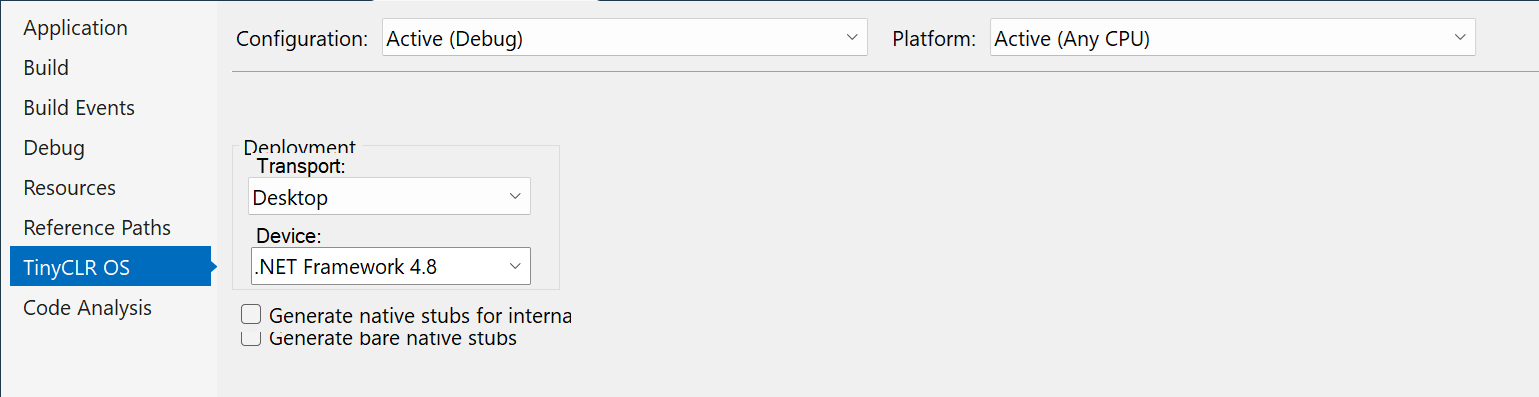
Press F5 to run on the PC. To return to the board, change Transport back to a device connection (USB/serial) and deploy as usual.
Create the project with the TinyCLR OS Visual Studio extension 3.0.0.0 or newer. The current extension generates a .csproj wired for dual mode; projects made with older templates may not have the Desktop configuration and won't switch cleanly.
File system on the PC
A TinyCLR drive is backed by a real folder on the PC. FileSystem.Mount(...) and the usual drive paths work the same in both modes — no code change — but on the PC the bytes land on the PC's disk:
- The first mounted drive is
A:\, the nextB:\, and so on (same as the device). - On the PC,
A:\maps to the folder%TEMP%\TinyCLRDrives\A\by default. Writing toA:\log.txttherefore creates…\TinyCLRDrives\A\log.txt(since drive letterA:doesn't exist on a normal PC, the drive becomes a folder namedAunder that base path). - Set the
TINYCLR_DUALMODE_FS_ROOTenvironment variable to point the drives at a different base folder.
// Same code on device and PC. (storageController comes from StorageController.FromName(...))
var drive = FileSystem.Mount(storageController.Hdc);
var root = new DriveInfo(drive.Name).Name;          // "A:\" in both modes

using (var fs = new FileStream(root + "log.txt", FileMode.Create)) {
    var data = System.Text.Encoding.UTF8.GetBytes("hello");
    fs.Write(data, 0, data.Length);
}
// On the device this lands on the SD/USB volume.
// On the PC it lands in %TEMP%\TinyCLRDrives\A\log.txt
Hardware peripherals on the PC
A PC has no GPIO, I²C, SPI, ADC, PWM, or UART hardware, so those APIs are stubbed in Desktop mode. The code runs to completion without throwing, but nothing real is behind it:
- Reads return a default value. A GPIO
Read()returnsLow— that is,0/false; analog and bus reads return0or empty buffers. For example, reading a button pin always reportsLowon the PC. - Writes and outputs are no-ops. Driving a pin, sending on a bus, or setting a PWM duty cycle does nothing physical.
- Events never fire. A pin's
ValueChanged(and other interrupt-driven events) is registered but never raised, since there's no hardware to trigger it.
Logic that branches on a sensor or button reading will always see the default value on the PC (a button reads Low, an ADC reads 0). Keep the logic under test independent of live pin/bus values, or feed it known inputs in the Desktop path.
Output
Debug.WriteLine is not supported in Desktop mode — use Console.WriteLine for diagnostic output so it appears in both modes.