Application Domain
The AppDomain class lets you load assemblies from a byte stream at runtime instead of baking them into the device's program flash. Common use cases:
- Field-updatable modules — ship a small core firmware and load feature modules from an SD card or USB drive as needed.
- Customer-specific features — a single firmware binary that loads different feature sets depending on which
.pefile is on the storage. - Reducing flash pressure — keep rarely-used code on external storage and load it on demand instead of consuming program flash.
- Late binding — when you don't know until runtime which assemblies will be needed.
NuGet packages: GHIElectronics.TinyCLR.Devices.Storage and GHIElectronics.TinyCLR.IO for the file access, plus GHIElectronics.TinyCLR.Pins for pin constants.
Workflow
There are two projects involved:
- Main application — runs on the SITCore. Mounts a USB drive (or SD card), reads a
.pefile, and loads it viaAppDomain. - Dynamically-loaded library — a separate TinyCLR Class Library project that builds to a Portable Executable (
.pe) file. You build this once, copy the.peto the storage device, and the main app loads it at runtime.
Main application
using GHIElectronics.TinyCLR.Devices.Storage;
using GHIElectronics.TinyCLR.IO;
using GHIElectronics.TinyCLR.Pins;
using System;
using System.IO;
using System.Reflection;

// Mount the USB mass-storage device.
var storageController = StorageController.FromName(SC20260.StorageController.UsbHostMassStorage);
var drive = FileSystem.Mount(storageController.Hdc);

var filename = drive.Name + "\\TestAppDomain.pe";

// Read the PE file into memory.
byte[] assemblyBytes;
using (var fs = new FileStream(filename, FileMode.Open)) {
    assemblyBytes = new byte[fs.Length];
    fs.Read(assemblyBytes, 0, assemblyBytes.Length);
}

// Load the assembly and create an instance of TestAssembly.
var assembly = Assembly.Load(assemblyBytes);
var obj = AppDomain.CurrentDomain.CreateInstanceAndUnwrap("TestAppDomain", "TestAppDomain.TestAssembly");

// Invoke PrintMessage on the loaded object.
var type = assembly.GetType("TestAppDomain.TestAssembly");
var method = type.GetMethod("PrintMessage");
method.Invoke(obj, null);
Library project
Create a separate TinyCLR Class Library project called TestAppDomain with this single class:
using System.Diagnostics;

namespace TestAppDomain {
    public class TestAssembly {
        public void PrintMessage() {
            Debug.WriteLine("Hello from TestAssembly");
        }
    }
}
Build settings for the library
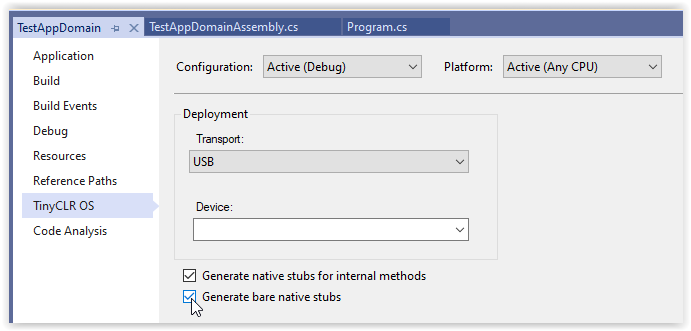
Right-click the TestAppDomain project in Solution Explorer, choose Properties, click TinyCLR in the left panel, and check both:
- Generate native stubs for internal methods
- Generate bare native stubs
These options tell Visual Studio to produce the Portable Executable (.pe) file that the main app loads at runtime.
Deploy and run
- Build the
TestAppDomainproject. - Copy
TestAppDomain/bin/Debug/pe/TestAppDomain.peto a USB flash drive. - Insert the drive into the SITCore.
- Deploy and run the main application.
Expected output:
'GHIElectronics.TinyCLR.VisualStudio.ProjectSystem.dll' (Managed): Loaded 'TestAppDomain'
Assembly: TestAppDomain (1.0.0.0)
Hello from TestAssembly
The first two lines come from the loader confirming the assembly was found and parsed; Hello from TestAssembly is the Debug.WriteLine call inside the dynamically-loaded code.
API reference
| Namespace | Description |
|---|---|
| GHIElectronics.TinyCLR.Devices.Storage | Storage controller for mounting file systems |
| GHIElectronics.TinyCLR.IO | File system I/O classes |